April 7, 2014

I Have The Power!

While at Macworld/iWorld this year, I visited the Powerocks booth and they gave me some of their awesome products to review for you here on my site. I'm very excited to tell you more about them!

So hey, do you remember SheRa? She had the power and now I do too because thanks to Powerocks, I no longer worry about being without power for any of my gadgets. It's like an anxiety chill-pill! Let's just say, whenever I reach into my bag, I now feel like this:
Image Credit: The amazingly talented Zephyri http://zephyri.deviantart.com

I've been using these Powerocks over the past week or so now, showing them off to clients and bragging to friends and family about them. They are slick-looking, practical and PURPLE! Of course, you can get them in several other colors, they have something for everyone. Mother's day is coming up so it might be fun to get a pink one for your mom or grandma! The colors are nice and bright so they're easy to spot when you're digging for one inside your bag. They come in a wide range of sizes and capacities.

Flash Magic Stick
The Flash Magic Stick is a 3000 mAh capacity charger. It's about the size of a lipstick tube and it has a built-in flashlight. I love, love, love that it gives me feedback on how much charge it has with its blue indicator lights on the side. The Powerocks designers are so smart because they made it so that you must press the button twice in order to turn on the light and twice again repeatedly to cycle through the different features: solid, blinking and strobe lights. It drives me nuts when products are designed with loose buttons that easily power on and waste energy for who knows how long inside your bag that by the time you need to use it, it's drained! Not so with the Flash Magic Stick. It's a bright design in more ways than one!

This little charger came in über-handy while I was at Cirque du Mac this year because my friend Barry was running out of juice on his iPhone. I had this handy Magic Stick in my pocket which charged my iPhone so I lent it to him for his ride home because Friends Don't Let Friends Power Down! The Flash Magic Stick came in so handy and I'm very pleased with this product. I think they will make fantastic gifts!

Next up is the big boy — The Magic Cub 2 — at 12000 mAh this mighty little brick packs a ridiculous amount of power!! I won't lie, it has a little bit of weight to it, but it's not overwhelmingly heavy. I love, love, love, how they think of everything. When you pop off the cover to reveal the ports, does it get lost? Nope! There's a string that keeps it attached! Brilliant! There are multiple charging cables built right in with a USB port to plug in your Apple devices requiring a bring-your-own Lightning cable. They tell me future designs will incorporate a Lightning cable built in, so check back for that, but in the meantime, this isn't really a big deal, because I always keep an extra USB to Lightning cable in my bag along with this bad-boy. This Powerock will be awesome for camping trips or long flights. I'll definitely be taking it with us when we travel out east to visit family because it's great for charging multiple devices — power for the whole family!

Here is a video showing my friend Michael Portis and I reviewing our Powerocks among other products in action during our Macworld/iWorld 2014 Wrap-Up.

Check out Powerocks and Go ahead, Get lost!

I Am Crazy Calendar Lady!

I went to Macworld/iWorld this year! It was a blast! More on that in another post because I'm still digesting it all now that I've pretty much accepted it wasn't all a crazy dream!

One of the things that happens at Macworld, is you get very overwhelmed by all that's going on. Yes, there is an app for that and I did use it, but not without first consulting my iPhone calendars. Yes. Plural. I have many calendars. It's just how I roll. If you met me at Macworld this year, you may have been blessed to take a peek at my iPhone and what you would see might make you a little dizzy or even want to bow at my feet and claim how unworthy you are because you do not have the cool and organized calendars like me. (Ok, someone needs to make me a Game of Thrones graphic where I'm perched upon the throne and the swords behind me are different calendar events or task line items. If I had that, I would insert it here. But I don't so just use your imagination. Muwahahaha!)

I have a calendar for everything and each is a different color and serves a different purpose. I can toggle them on and off depending on how busy my day gets. My calendars just rock and I like it that way. I mean, how else would I know where I can squeeze in a cat nap? I have insomnia and don't actually sleep like normal people, so having different calendars helps me manage my family, my business and monitor my health. Each member of my family has their own calendar. I also have a separate calendar for TheMacMommy which is how I schedule my clients and business-related events. Then I have a calendar for the YMCA which shows each of the exercise classes, ya know, in case I actually muster up the energy to go? I have a calendar which shows all of the childcare time available at the YMCA which, you know, might actually entice me to go to the gym or pool for times when I really could use a break from Keagan's constant and adorable babbling, the kind that never stops and makes it near impossible to think straight because I really need yet one more voice inside my head! Yes, that kind. (I love you my sweet baboon!)

Does having super, color-coded crazy calendars make me any less frenzied? Kinda sorta, but not really because there probably isn't much in the world that can do that. I wouldn't be me unless I wasn't at least a little scatterbrained, BUT having my crazy cool calendars is just lots of fun so I want to tell you about the awesome tools I'm using. YOU might actually find a way to be really super practical with them!

First up, I'll tell you about the new kid on the block. It's called UpTo. Right now it's only available for iPhone, but they are working on an iPad version. They're also working on making it available in other countries too, but so far as I know, it's USA only. (Sorry global friends. When I know more, you will know more!) This app does what other calendar apps do, but it does it in a really cool way and it has these extra social and entrainment features. Before UpTo, I used to have a hand-made calendar I called "Entertainment" and on it would go information and dates for TV shows I wanted to catch when they became available or so I could watch for them to become available online for free. You see, I'm a cord-cutter since 2009 so when the rest of the world is all excited about TV shows that have just aired, I put my little blinders on and try to avoid the social media spoilers while patiently waiting for them to become available somewhere else that doesn't involve cable TV. I'm a mom, like I can actually watch anything when it airs, come on! UpTo is becoming super handy for this!

I really like how it takes a layered approach to calendars. When I use my default iOS calendar, I have to constantly toggle calendars on and off to see what I really need to focus on. UpTo has this really cool pinch to reveal gesture and when you specify which calendars need to be front and center, you can put the less important calendars in the back and then just peek at them when you need to. I mean, the premiere of Game of Thrones is super exciting and all, but it's not going to help me get that cat nap if it's in my face the whole time.

UpTo is free! Use my affiliate links to download it here:


Ok, lets move on to the mainstay of calendar apps. While I'm really enjoying UpTo and using it on the side with all it's cool new social and layering features, it still has its limits and those limits are not present with the darling of all Mac and iOS calendar apps, Fantastical by Flexibits. The developers gave me review codes so I could tell you more about them here. So many of my friends all over the world have been using Fantastical for so long now I had to see what all the fuss was about on the iPhone. I've been using the Mac app for a long time now, so long that it's kind of just ingrained as part of my workflow for entering events onto my Mac calendar which then syncs across all my devices. Yeah, I think they meant for that to happen! I love how the little icon is ever-present in my menubar and it gives me joy to click on it and interact with it from the drop-down menu. If you click this link, you can watch a cool little video to see just what I mean.

You can download Fantastical for the Mac here:


Now, you know I'm big on the whole trifecta thing of having the same apps on all my devices and Flexibits must know what I like because they have a version of Fantastical for iPhone and they just released an iPad version. (I don't have the iPad version, but if I get it, I'll be sure to report back on it soon.) So, it's just natural to want to use Fantastical 2 on your iPhone (and now iPad) for all your scheduling needs. I found it to be true what my friends say, that once you use Fantastical on your iPhone, you'll never use the native Calendar app again. (While you can not delete the native calendar app, the trick I use is I create a folder that I shove onto the back page of my iOS devices which contains stock apps I no longer use or the ones that are now available by swiping up from the bottom to reveal Control Center.)

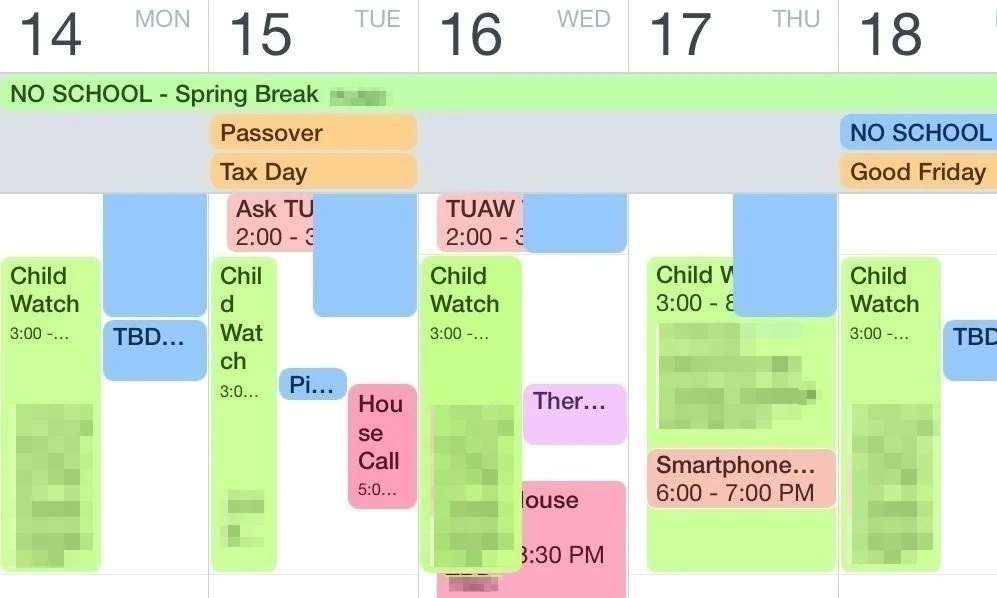
The interface design of Fantastical 2 for iPhone is super slick, intuitive and easy on the eyes as you can choose from both light and dark themes. When I was bragging earlier about how my friends think I'm the Crazy Calendar Lady, it's because I was showing them the Fantastical view on my iPhone sideways and watching them all ooh and ahh over all my color-coded blocks!

One of the coolest features I just discovered is the special treatment given to birthdays! Go ahead and tap once on someone's birthday and you'll see their face (if you've given them an avatar in your Contacts or if it's been assigned from a connected Facebook). Notice the animated falling confetti! Such a special touch. Below that you'll see icons for communicating with your birthday buddy so now you have no excuse – go on now, give them a call or send a text or email and wish them a Happy Birthday! (I bet the Flexibits Moms inspired this feature ;)

In this example, my Dad has a birthday coming up. I've blocked out his info for privacy, but you'll notice it says "Dad" and that's because Fantastical 2 respects the nickname from his contact card. Between nicknames and falling confetti, it's these little attention to details that tickles me when I review apps for my blog.

As always, you can check out a trial version on the Mac here. Once you fall in love with it as much as I have, you can get it for your iPhone and iPad using these links. Thanks for checking out my reviews and supporting my efforts!

Fantastical 2 for iPhone here:


Fantastical 2 for iPad here:


April 6, 2014

Fancy Finances with iBank

Well, it's April and you know what that means! Tax preparation hell time! You know what would make it easier, and maybe even a little more fun? Use iBank to manage your finances on your Mac, iPad and iPhone. I've posted about this app in the past but I feel like I just have to repeat it because the fine folks over at Igg Software and makers of iBank just keep raising the bar on the features and design of their products. Like a shiny penny, they just keep polishing it. Yes, they gave me a review license, but trust me, I would still endorse this app because I have seen the horror that is that other software that shall not be named for the Mac and iBank is the just the way to go. My CPA loves how organized I am come tax time, thanks to iBank.

Here is a link to their latest press release so you can read up on the newest improvements and enhancements.

As always, you can try before you buy which is extremely handy when it comes to learning a new personal finance tool.

Watch these handy-dandy tutorials, I mean, can they make it any easier?

iBank is the personal finance product I recommend to my clients when they want to learn how to manage their finances digitally or become more comfortable with online banking.

When you're ready to upgrade or purchase, click these affiliate links because that helps support my efforts to bring you reviews and hand-picked endorsements here on my site.


iBank is available on your iPad and iPhone too!
Click here for iPad


March 29, 2014

Macworld iWorld 2014 Wrap-Up

Join Michael Portis and I in our Macworld/iWorld 2014 Wrap-Up discussing what and who caught our eye at the Expo this year.


Products Reviewed
Square Jellyfish
PoweRocks
Pocket Tripod
Contact Patch
Studio Neat

and a BIG personal thank you to:
Michael Rose
Jack Hollingsworth

If you would like to join our community, please visit http://smartphone-photographers.com/ 

March 16, 2014

Interviewed for Chit Chat Across The Pond - Show 462 of NosillaCast Mac Podcast


Have a listen to yours truly interviewed by Allister Jenks discussing the topic of Teaching Technology to The Young and Old on this week's Chit Chat Across The Pond segment for Allison Sheridan's NosillaCast Mac Podcast show "#462 Watershot underwater iPhone case, IcyDock EZ-Dock, AnyFont, teaching technology to the young and old"

Of course you should listen to the whole episode because ya might learn somethin! (Click the link above to see the entire post for the full show content.)

Click on this audio player to listen to NosillaCast Mac Podcast


This is my written contribution to the show:

CCATP — Melissa Davis on Teaching Technology to The Young and Old: Hard or Just Scary?

I love to compare 7 year-olds with 77 year-olds. I happen to be the parent of a 7 year old (and a 4 year old). I’ve worked with people of all different ages helping them or teaching them how to use Apple tech and most of my clients these days are in the 60 to 80 year old age group.
A person’s life experiences work to shape their personality and vice-versa. Most small children, who presumably haven’t had much exposure to computers, who haven’t yet developed much of a fear for anything, will use and embrace technology because they naturally explore things in their environment. Nowadays babies are born to parents who capture their very first moments with their smart phones. They’re accustomed to this thing their parents tote around – in addition to them – that glows and makes noise and constantly gets shoved in their little faces. Of course there are also parents who are careful to keep their babies away from the exposure to backlit displays for their own reasons. There are inconclusive studies out there that suggest backlit screen exposure can be harmful to developing eyes. I can not confirm or deny any of it at this point so I’m working off of experience with a healthy dose of caution and practice of moderation. Of course the nature vs nurture debate will come up here as well.
Let’s think about the type of exposure. This could be a void of technology exposure in the home and limited to school or vice-versa. It could be a third-world country. Think of the documentaries you’ve watched where film crews go to these countries to document the lives of the people there. Watch how some react to having people moving about with these large and small cameras and computers. Some are cautious, others are curious.
Think about a generation of workers in the 80s and 90s who were introduced to computers in the workplace. So many times you’ll hear people say, “I use a computer at work all day, the last thing I want to do is stare at a screen for longer than I have to.” That generation is skeptical of computers. They’ve been taught computers and devices are for work, not play and that work could never be much fun. Work is not something to enjoy. Their exposure to computers has been, “if I press any other buttons besides the ones I’ve been instructed to press, I might blow up the computer and my boss will fire me.” That kind of exposure breeds fear so no wonder some people in their 50s and 60s can be somewhat apprehensive to computers. They’re also the generation that believes Big Brother is out to get them. We’re seeing that again now with NSA. We’re all very cautious about using devices because of how they infringe upon our privacy or how we might get into trouble by using them.
Lots of people either forget or don’t understand that you can operate software without being connected to the Internet! There are fun things you can do with computerized devices that don’t involve being “online.” This is where I have to teach clients about using the Mail app versus Gmail.
People both young and old may see learning how to use computerized devices as a chore or a task they need to learn and want to get it out of the way so they can go do something else. You could have children in which you’re trying to teach them something specific, say word processing, and you’re getting into the nitty-gritty of how to format a paragraph of text for a report. They may be daydreaming about the video game they want to play while you’re trying to teach them something fundamental.
Older folks have short attention spans also. They get “fried” or “OD” pretty quickly. It’s no secret to us that time practically evaporates when we’re working on something technical whether it’s troubleshooting a problem (that time seems to go the quickest because you’re under stress to work some magic to fix it) or teaching someone how to do something.
One of the biggest pieces of advice I can offer is that everyone learns things a little differently. When you’re working with someone you need to find out how they learn best and adapt your method of teaching them.
Consistency also is key and hard to stick to when your working in a field where everything changes so rapidly. How do you keep consistent? Many people crave consistency. One way I try to achieve this is by drawing parallels across different apps. This is one of many things I love about the Mac OS. I can say things like, "Remember this last lesson we talked about how to search for things within an application and I told you to look for the little magnifying glass? Well, what do you see right here? Notice how the symbol is the same?"
Another way to achieve consistency is by modifying the interface preferences — make everything look the same, enlarge the fonts, and if you customize the toolbar for them, try to put similar tools in the same spots to reinforce muscle memory.

What have you learned by teaching the old and young? 
  • Relating analog to digital examples helps.
  • Do not take little things for granted. I cringe every time someone says, “Yeah, ya just hit enter.” There are people that don’t understand what it means to “Hit a key” and they don’t even know you meant a key on the keyboard for starters. Do not assume everyone understands all jargon. Look through their eyes and start slow and basic, then drop it down one more level lower because chances are you’re not aiming low enough. Ask them about their experiences first and try to gauge what terminology to use. Explain how you're trying to strike a balance of not insulting their intelligence but also not going way over their head, too.
  • When you say “to your left” be prepared to say, “your other left.” People get nervous when they’re being instructed and fumble over basic things and it’s natural. Do not make fun of them for it. You’re no better!
  • Don’t do it all for them, put them in the driver’s seat. If you always do it, they won’t learn it. Be gentle at times when you do need to do it first in order to understand it and tell them so. I explain, “In order for me to teach you this, let me do it first and then I’ll break it down for you.” Say things like, “Don’t feel pressured to remember this all at once. We will get there. I’ll go over it as many times as you need.”
  • Explain as you go along – verbalize as much as you can while you're whizzing the pointer around the screen.
  • Teach people to leave themselves a little breadcrumb along the way.
  • Have a boat-load of patience and get used to repeating yourself, hearing the same stories and questions over and over.
Sometimes clients need to stop and tell you a story. It’s how they process information and deal with overload. It’s OK. They know the clock is ticking and you’re charging for it. It took me a while to learn this and I felt very guilty at first, but friendships develop at a deeper level and it’s incredibly important to for trust especially when you’re working with people who are showing you their online banking and other very personal information.
It’s all personal. Very personal. Emotional. This is the most true when teaching people how to work with digital photos or how to make a birthday card or calendar. Be sensitive to this.

February 24, 2014

Mother's Little Helper App: Naturespace

My littlest guy is sick right now with an upper respiratory cold. Some Vicks Vapo Rub on his chest, along with some snuggles and this app is helping to keep him calm.

Naturespace: Relax Meditate Escape Sleep with 3D Sound by Holographic Audio Theater
https://itunes.apple.com/us/app/naturespace-relax-meditate/id312618509?mt=8

February 21, 2014

FitBit Stride Length Calculator

Are you a FitBitter like me? Did you get one of these little gadgets for Christmas? There is also a wristband version called Fitbit Flex. I got a FitBit One for myself for my birthday last year so I've now had it for a few months. One thing I have learned since wearing this gadget is the importance of stride length. When I went to input the number though, I wanted to make sure I was doing it correctly. I found this cool calculator widget and I thought I'd share it with you. I hope you find this as helpful as I have. I believe wearable tech will grow to be a bigger hit in the coming years.

Are you hooked up yet?

Click this link if the hosted graphic doesn't load below: Stride Length Calculator

December 7, 2013

Evening, Javelina!

All this time living in Arizona, I have never seen Javelina up close, until now. I was leaving a client’s home Thursday night and it was around 7:45 pm. I was accelerating up a small hill when I had to hit the hooks as they were just congregating in the middle of the road! They scurried up the side of the road and continued their little meeting and I just had to stop the car and marvel at them. It was really hard to photograph what I was seeing with just my iPhone. It didn’t help that I was kinda of scared that they might charge me or that a car could come up behind me at any time. Instinct told me I should not get out of the car, but I admit I was very tempted! I decided they were a safe enough distance away from my car, so I took a deep breath, picked up my iPhone with one hand while rolling down my electric window and keeping my finger on that window button, my left foot on the clutch, right on the break, paused the podcast I was playing, brought up the camera, enabled the flash while trying to reach up with my thumb to tap the screen in an attempt at focusing on the peccary then snapped 2 photos. The super bright flash from my LED flash startled them and they began scurrying away. The photos I captured were pitch black and I was disappointed that I couldn’t capture the moment. I rolled up my window, put the phone back in my dash, engaged in first gear and slowly drove off in amazement of having witnessed these nocturnal animals. I was glad I got to see them with my own eyes.

While organizing my photos for this evening, I decided instead of discarding these back blobs that I’d try and edit them in iPhoto. It turns out I was able to get something out of one of them and as you can see here, you can almost make out the shapes of the Javelina. You can make out 3 or 4 of them in the shadows.

This is what I absolutely love about smartphone photography: the thrill of the moment. Your heart beats in your chest and you feel alive in the moment.

So many times I feel guilty because I am always snapping photos of every little thing. “Melissa, how can you be present in the moment when you’re always behind the camera?” Well, maybe everyone’s way of being present is just not the same. I felt very much alive trying to capture this moment. Not only was I present then, but I can recall that moment now any time I like and feel a sense of pride. Is this not being present in the moment?